

UX Decisions Product Managers Get Wrong: The Switch Button
A switch button flips one setting on or off instantly. Learn when to use it, how to label it, and how to test it with a semantic differential scale.


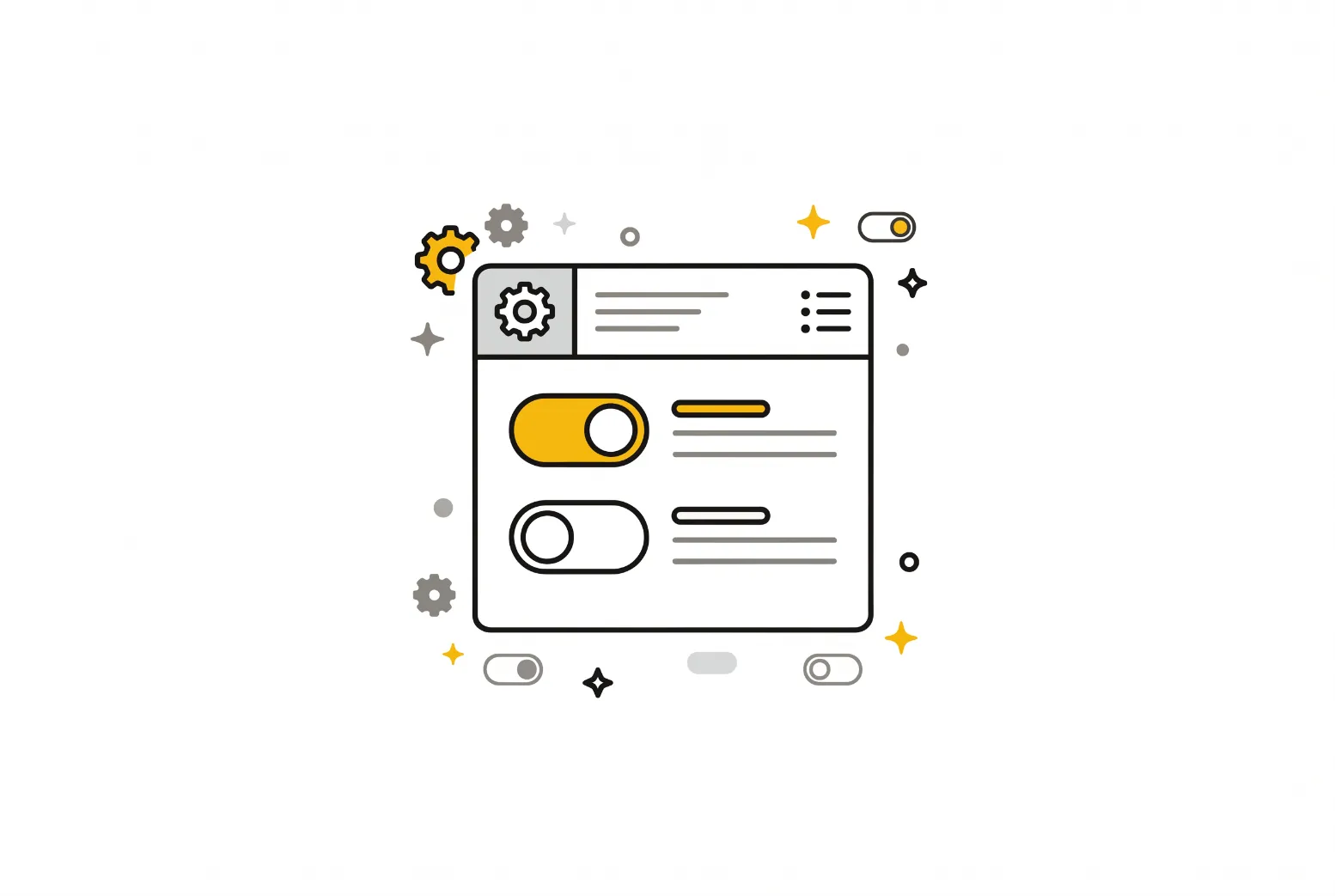
Table of Contents
A switch button is a digital on/off control that changes a single setting the moment someone taps it. No Save button, no confirmation step. Flip it, and the product responds.
That sounds simple, and it is why switches get misused so often. Teams drop one into a form that still needs a Submit click, label it with a question, or color the "off" state red. Users then guess what the control actually did. A switch only works when its behavior, its wording, and its look all agree with each other.
Product managers usually do not draw the switch themselves, but they do approve the spec. That makes you the person who decides whether a setting should apply instantly, what the label says, and how you will know users read it correctly. The sections below cover those three decisions, starting with semantic design: choosing the right control in the first place.
Semantic Design: Choosing a Switch Over a Checkbox
Semantic design means the control's form tells the user what will happen before they touch it. A switch tells the user "this changes now." A checkbox tells the user "this changes when I confirm." Mixing those signals is the most common switch mistake we see in product reviews.
Nielsen Norman Group's guidelines on toggle switches state that a toggle should take immediate effect and should not need a Save or Submit button. They also note that if the result cannot be immediate, a single checkbox or a set of radio buttons is the better pick. The guidance dates from 2018, so check it against your platform's current standards, but the logic has held up well.
Picture a notification settings page. A switch next to "Email notifications" works, because flipping it can save in the background and the user sees the effect right away. Now picture the same switch inside a profile form with a Save button at the bottom. The user flips it, closes the tab, and wonders whether anything happened. That ambiguity is a support ticket waiting to be filed.
PatternFly's design guidelines draw the same line from the design-system side. A switch saves automatically when toggled, while checkboxes suit cases where the user must take an extra step, such as clicking Save, to apply their choices. PatternFly also points to radio buttons when the options are anything other than simply on or off. For product teams, that gives you a quick decision rule you can paste into a spec:
- Does the change apply the instant the user acts? Use a switch.
- Does it apply only after a Save or Submit? Use a checkbox.
- Are there more than two options, or are they mutually exclusive? Use radio buttons or a segmented control.
- Is it a long list of independent choices? Checkboxes keep the list scannable.
One more edge case: if the backend cannot honor an instant change, do not fake it. A switch that flips visually but fails silently three seconds later is worse than a checkbox. If your API call can fail, design the error state at the same time you design the switch, and make the control snap back to its previous position with a clear message.
Semantic Differential Questions for Switch Labels
Behavior is half the job. The other half is the label, and this is where otherwise solid switches fall apart. The test is blunt: read the label aloud and add "on" or "off" at the end. "Email notifications, on" makes sense. "Include archived items? On" does not.
NN/g recommends short, direct labels with the keyword first, and warns against labels written as questions. PatternFly goes a step further with examples such as preferring "Bluetooth" over "Turn on Bluetooth," and it advises that a label should never change when the switch changes state. If the text flips from "Enable alerts" to "Disable alerts," users cannot tell whether the words describe the current state or the action they are about to take.
Accessibility makes the stakes higher. The W3C's ARIA Authoring Practices Guide for the switch pattern says the element must use the switch role, report its state through aria-checked, and respond to the Space key. It also says it is critical that the label does not change when the state changes, because the on or off status is already announced separately. A screen reader user hears "Dark mode, switch, on." If your label also says "Dark mode enabled," they hear the state twice and may wonder which one is true.
Once labels are written, you can test how users read them. Semantic differential questions are a good fit. Instead of asking "Is this label clear?", which invites a polite yes, you ask people to place the label between pairs of opposites such as clear and confusing, instant and delayed, or safe and risky. A label like "Share activity" might score as "risky" because users cannot tell who sees the activity. That is a finding you can act on, and a simple yes or no survey would have hidden it.
Keep the pairs tied to what you actually want to learn. For a switch, three pairs are usually enough: how clear the label is, how immediate the effect feels, and how reversible the action feels. More than that and respondents start answering on autopilot.
Semantic Differential Scale Instructions for a Switch Test
A semantic differential scale measures perception, not preference. Respondents see a concept, here your switch and its label, and rate it on a seven-point line between two opposite adjectives. Our guide to the semantic differential scale covers the method in depth. For a switch test, the setup is short:
- Pick one switch and one label variant per test round. Testing three variants at once muddies the results.
- Choose three to five adjective pairs that are true opposites, such as obvious and ambiguous, or instant and delayed.
- Mix the direction of the pairs so the positive word is not always on the left. This reduces lazy straight-line answers.
- Show the switch in context, ideally in both states, rather than as an isolated screenshot.
- Run a pilot with a handful of colleagues or users to catch pairs that make no sense.
- Compare average scores across label variants, then follow up with a few short interviews to learn why the low scores happened.
Numbers alone will not tell you what to rewrite, which is why the last step matters. A low "obvious" score on "Auto-sync" might come from users not knowing what is being synced, not from the switch itself. Five conversations will usually tell you faster than another round of surveys.
The test also fits neatly into broader design work. If your team is still deciding how much UI polish belongs in an MVP, our overview of UI and UX design basics for product managers is a useful companion. Running a small perception test on a switch is cheap, takes a day or two, and catches the confusing labels that otherwise show up later as support tickets and lowered adoption of the feature you shipped.
One last design note on state. NN/g advises high-contrast colors for the on position and cautions against red, since many people read it as a stop signal or an error. Pair color with position and a visible label so the state never depends on color alone.
Frequently Asked Questions
Conclusion
A switch button earns its place when the change is instant, binary, and clearly named. Get those three right and users never think about it, which is the goal of any control.
Before your next release, pick one switch in your product and run the short semantic differential test above. If the scores surprise you, rewrite the label first. It is the cheapest fix you will make this quarter.

Interested in working with us?
Our Interim/Fractional Product Managers, Owners, and Leaders quickly fill gaps, scale your team, or lead key initiatives during transitions. We onboard swiftly, align teams, and deliver results.
Read More Posts
October 28, 2026
Picking from Different Research Methods
Different research methods answer different questions. Learn how qualitative, quantitative, generative and evaluative methods differ and which one fits your product.
October 26, 2026
What Is a Persona? A Product Manager's Practical Guide
A persona is a research-based profile of a target user. Learn what goes into a user persona, how to create one, and where AI helps and fails.
October 19, 2026
How a Convenience Survey Works and When to Trust the Results
A convenience survey is fast and cheap, but easy to misread. Learn how convenience sampling works, where it misleads, and when product teams can use it.